
Mozilla Thunderbird has long been a favorite free and open-source email client, offering local storage, robust IMAP/POP support, and deep customization. Still, many users and professionals find ways to migrate a Thunderbird Profile to Outlook. Why make the switch? From powerful cloud integration with Microsoft 365 to seamless calendar and team collaboration tools, Outlook offers distinct advantages for modern workflows. This comprehensive guide covers everything you need to know to migrate your Thunderbird profile to Outlook smoothly.
Reasons to Migrate from Thunderbird to MS Outlook
There could be several reasons for moving from Thunderbird to MS Outlook.
- Thunderbird is excellent for individuals, while MS Outlook is suitable for both individuals and professionals.
- Working in the cloud with MS Office 365 enhances work performance, protects data, and offers various other advantages. Integration of MS Office 365 with Outlook makes data management easy, fast, and well-organised. Outlook offers advanced team integration features, along with professional calendar and meeting management support.
- With Outlook, companies can maintain centralised management, compliance, and security easily.
- Using other MS services also becomes easy.
- Cloud data storage ensures that even if the system stops working, your data remains safe. You can access your data anytime.
Difference Between Thunderbird & Outlook
| Feature | Microsoft Outlook | Mozilla Thunderbird |
| Developer | Owned by a renowned company, Microsoft | A reliable firm, Mozilla |
| Cost | Available with Microsoft 365 or Office, usually a paid program | Free and open-source |
| Email Accounts | Supports Microsoft 365, Outlook.com, Gmail, POP, IMAP, etc. | Supports Outlook, IMAP, POP, and many other providers |
| Operating System | Windows, Web, MacOS, Android, iOS | Windows, MacOS, Android, iOS |
| Email organisation | Advanced filtering, organise by category, folder or flag | Basic filtering and strong folder support |
| Teams integration | Excellent | No native Teams integration |
| Customisation | Moderate | High |
| Extensions/Add-ons | Available | Large extension ecosystem |
| Business use | Excellent | Good |
Manual Technique to Move Thunderbird to Outlook
Technique 1: Transfer Emails from Thunderbird to Outlook
Before you choose this manual method, ensure that Thunderbird is installed, the internet connection is stable, and your Outlook credentials are ready. Here, we copy the selected emails instead of deleting them from Thunderbird.
Part 1: Adding Your Outlook account to Thunderbird
- Access Thunderbird
- Go to the Navigation Section and then Account Settings.
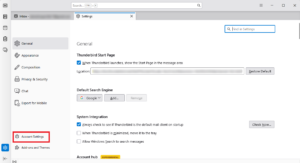
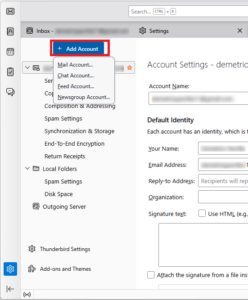
- Press Account Actions and choose Add Mail Account.
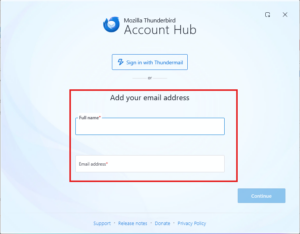
- In the new window, provide the target Outlook email address and password, then click Continue.
- Now wait for Thunderbird to automatically locate the correct Outlook/Microsoft server settings. Then click Done.
- A Microsoft sign-in window may appear; provide your Outlook credentials and press Allow/Accept.
Part 2: Confirm Whether Outlook is Added
Once the setup is finished, check the left side of Thunderbird to see the listed Outlook account. You can click that account to view all its folders.
Part 3: Locate the Target Emails
Now search for the emails you want to export in Thunderbird.
Part 4: Select the emails
If you want to export a single email, select it. If you want to transfer multiple emails, hold Ctrl on your keyboard and click the other emails you want. To export all emails in a folder, select an email and then press Ctrl + A.
Part 5: Now, Copy Them to Outlook
Right-click and select Copy To.
Part 6: Wait to Start the Transfer Process
This part can take time depending on how many emails you want to export. Don’t turn off Thunderbird at this time.
Part 7: Assess Transferred Data
- Now, it’s time to access the Outlook Account in your web browser and sign in to your Outlook account.
- Check the Inbox to evaluate the transferred data.
Part 8: Don’t Delete the Exported Emails Immediately from Thunderbird
It is an important step; here you check the email quantity. Suppose you exported 500 emails; the Outlook account should have 500 new emails with all their properties intact.
Technique 2: Migrate Thunderbird Emails to MS Outlook Using EML
This is a simple process. For this, you save emails from Thunderbird in EML and then import EML files into Outlook.
Part 1: Export Thunderbird emails as EML files
- Access Thunderbird on your system and navigate to the target folder, such as Inbox.
- Select a single email or hold Ctrl to select multiple emails, or press Ctrl + A to select all emails.
- Right-click the selected emails, choose Save As, and select File (or choose Save Selected Messages, EML Format if using the native menu/add-on) to save them locally.
Part 2: Organise your EML files
Since the EML format carries a single email, creating a separate folder to organise these EML files is a good idea. You can create separate folders for each mailbox. This practice will make organisation easy.
Part 3: Open Microsoft Outlook
Open the Microsoft Outlook desktop application on your computer.
Part 4: Importing EML into Outlook
Remember, EML to Outlook import can vary. It mainly depends on which Outlook application you are using.
For Classic Outlook, the import process includes:
- Access the folder containing EML files in Outlook.
- Select or double-click an .eml file to open it.
- Copy the message to the desired folder in Outlook.
- Follow the same process for each email that you want to save in Outlook.
Drawbacks of Manual Method
| Issue | Method 1: Direct Thunderbird → Outlook | Method 2: Thunderbird (EML) → Outlook |
| Export large number of emails | Not recommended (time-consuming) | Hectic (time-consuming) |
| Manual Labour | A few steps required | Very high for hundreds or thousands of EML files |
| Folder structure | Easy to create | Need to create manually |
| Export Attachments | Yes, export with emails | Yes, export with emails |
| Email dates/metadata | Usually safe to preserve | Some metadata may go missing |
| Duplicate emails | Chances are high | Chances are high |
| Data Export interruption | May notice partial conversion sometimes | A time-consuming and tiring process |
| Recommended When | Export limited items | Export limited items |
Automated Way to Switch from Thunderbird to Outlook
When handling large-scale migrations, relying on a dedicated automated tool saves time and eliminates the risk of human error. ViceVersa Thunderbird to PST Converter offers a reliable way to handle batch conversions while preserving your data integrity, metadata, and folder structure. It automatically detects the Thunderbird profile, and you can directly convert it into PST format smoothly.
Steps to Move Mozilla Thunderbird to MS Outlook
- Download and run this application on your Windows system.
- Click on the New Job tab and Thunderbird Option.
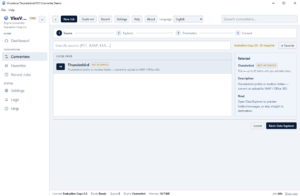
- Now, browse the Thunderbird profile and take a preview.
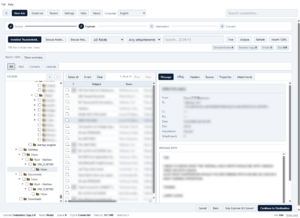
- Select the PST format as the output option.
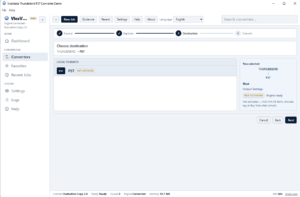
- Choose a destination folder for storing the resulting PST file.
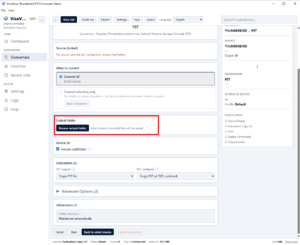
- Lastly, click Export to finish the process.
Advantages of ViceVersa Thunderbird to PST Exporter
- This is a straightforward and independent application, which means you don’t need assistance from technicians or third-party apps.
- Conversion saves time as the tool exports multiple Thunderbird files to PST at once. The batch migration process helps maintain data integrity during migration.
- Attachments and metadata properties are exported with high accuracy.
- The tool supports a smart deep file filtration feature to export only the required Thunderbird files.
- It has a preview pane to display the properties of all selected files.
- The licensed version offers unlimited migrations.
Conclusion
As you closely analyse all three solutions to export Thunderbird Profile to Outlook, you can notice that the third-party solution is more practical than the other two manual solutions when it comes to batch migration and maintaining data integrity. Manual solutions are suitable when you have limited items to export and data integrity is not a major concern.