If you are a user of Thunderbird or Outlook for Windows, the EML/PST file format is not something that needs an introduction to you. However, this section is for new users of EML as well as PST. Let’s get to the point. Both EML and PST are file formats. An EML file contains a single email message, including sender and recipient information, the message body, attachments, and email headers.
On the contrary, a PST file can store multiple emails along with other Outlook items like notes, calendars, and contacts. The primary aim of PST is to create an offline backup of Outlook data. EML, on the other hand, is excellent for storing and exporting a single email. One more important thing is that PST is primarily designed for Outlook for Windows to store email and other data, whereas EML files can be accessed in Outlook but are not designed specifically to store Outlook data.
Why do Users Convert from EML to PST?
- Individuals and organisations plan to convert EML to PST for various reasons. We have shared some common reasons.
- If you plan to switch from Thunderbird or any EML-supporting email client to Outlook, EML to PST conversion is the foremost step to keep important data intact.
- If you have multiple EML files belonging to the same category and want to organise them together as a user of Outlook, the best practice is to export EML files to PST, as a PST file can store multiple emails. The file size can be up to 50 GB.
- The idea of archiving EML files can encourage you to choose the PST file format if you are a user of Outlook for Windows.
- Since the PST file extension offers advanced email data organisation, conversion from EML to PST is one of the best practices. It will let you navigate or search for a specific email faster.
Also Read: Fix EML Files Not Opening in Outlook Issue
Manual Methods to Convert EML files to PST Format
Did you know you can export EML into PST manually and automatically? If you have limited items to export, a manual solution can be an ideal choice. We have discussed two popular manual solutions to export EML into PST, with the hope of providing you with the best option for conversion.
Method 1: Drag and Drop Emails (For Small Amounts)
This is a smart method to view EML files in Outlook.
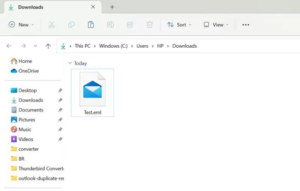
- The first step is to look for an EML file that you want to open in Outlook. Access File Explorer (Windows + E) and navigate to the folder that has EML files.
- Now, launch Outlook Classic on Windows and access the mail folder where you want to save the data; it can be the Inbox or any folder of your choice.
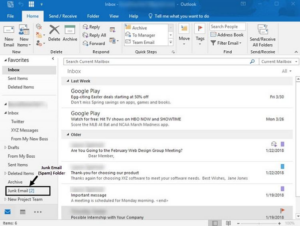
- Now, position File Explorer and Outlook side by side to choose an EML file and drag it into a folder in Outlook. You can repeat the process for other EML files.
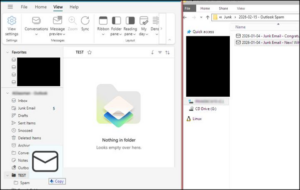
- Now, check Outlook to verify the exported data is in the destination folder.
Remember
- It is always good to first create a new folder in Outlook to save the exported data to avoid Outlook treating your exported data as attachments.
- You can hold Ctrl or Shift to select multiple EML files to drag them into Outlook.
Important Note: This method is suitable for importing EML data into Outlook in small numbers. It does not create a PST file. If you need a PST file, you will need to use Outlook’s Import/Export wizard to export the folder into a PST format.
Method 2: Convert EML to PST Using Thunderbird
Remember, Mozilla Thunderbird doesn’t offer any native support to export emails directly to PST format. It is to import data in EML file format and then transfer data to Classic Outlook and then stores in PST file format.
- Access Thunderbird on your Windows system.
- Now, install ImportExportTools NG by selecting Add-ons and Themes. As you locate this tool on Thunderbird, select it to add in Thunderbird.

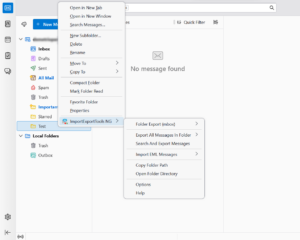
- To import EML files into Thunderbird, right-click on the Test Folder in the folder pane. Then, locate the ImportExportTools NG menu and select the Import EML file option from a directory. Now, choose the target folder containing EML files.
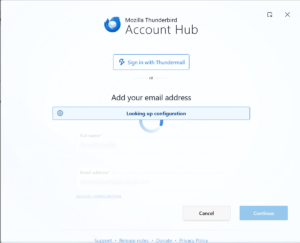
- Now, export imported data through IMAP configuration between Thunderbird and classic Outlook. Once these accounts are connected, copy the imported messages and wait for synchronization to finish. After this, you can see the imported data in Outlook.
- Next, get ready to export data in PST file format. Access classic Outlook, go to File, then choose Open & Export and press Import/Export. From the Import and Export wizard, select “Export to File” and press Next. In the next wizard, choose Outlook Data File (.PST), then select the folder containing imported emails, and check Include Subfolder if you need. In the end, click “Browse” to enter the filename and press the “Finish” tab.
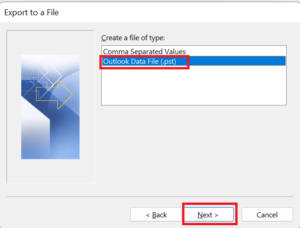
Important Note: While this free manual method works, it requires active email account configurations (IMAP) and can be time-consuming for large mailboxes.
Limitations of Manual Method
- Manual methods do not directly generate a PST file and require an extra export step through Outlook.
- They are tedious, slow, and inefficient when handling large volumes of emails.
- There is a higher risk of losing folder hierarchies, email metadata, or attachments if steps are not followed precisely.
How to Convert EML to PST Using a Professional Tool
You can use a dedicated tool to export EML files to PST. ViceVersa EML to PST Converter is one of the applications that allows you to export selected EML files to a PST within a few clicks. The application exports selected EML files while preserving their properties. Its batch migration feature makes the export process faster. The application is designed to maintain conversion accuracy without modifying data quality or structure.\
Steps to Export Data Using the ViceVersa EML PST Converter
- Launch the application after installing it on your Windows system.
- Select ‘File’ or ‘Folder’, then click the ‘Browse’ tab to choose locally saved EML files for conversion and take a preview.
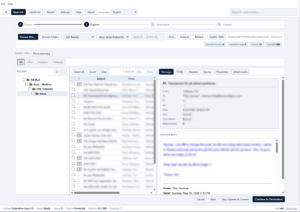
- After, Preview the selected data and choose the PST format.
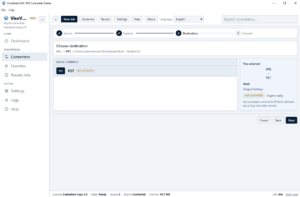
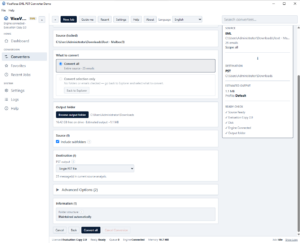
- Last, Select Output location, press the ‘Convert’ button to start the conversion.
Why Are Export Tools Better Than Manual Methods?
- Export tools are an excellent alternative to manual methods when performing regular conversions.
- Batch migration can simplify the process of handling multiple files at once.
- For a novice, a third-party tool may be easier to use than manual solutions that require additional technical knowledge.
- Migration with metadata and attachments preserved may be possible with a third-party program, depending on the tool and source files.
Conclusion
Overall, you have three options to consider when exporting EML data to PST. Each method has its own drawbacks and advantages. However, manual methods are more suitable for small numbers of files or users comfortable with technical procedures, while a professional solution may be more convenient for regular, batch migrations.
FAQs
What is the Difference Between PST and EML file Extensions?
PST (Personal Storage Table) is an Outlook data file format used to store a complete Outlook mailbox and other items. EML is a file format used by Thunderbird and various other email clients to store an individual email message.
Do EML files work with all Versions of Outlook?
Yes, you can access EML files in supported versions of new and classic Outlook, but the process may vary depending on the version.
Is the Email Structure Maintained when Converting EML to PST?
Manual methods do not necessarily guarantee that all email properties and folder structures will be preserved. You can use a professional conversion program that offers features designed to preserve email properties, attachments, and structure. However, you should verify the results after conversion.